

George Brown Polytechnic is located on the traditional territory of the Mississaugas of the Credit First Nation and other Indigenous peoples who have lived here over time. We are grateful to share this land as treaty people who learn, work and live in the community with each other.
As of April 2025, Accessible Learning Services (ALS) has implemented a new system for requesting and managing accommodations called Accommodate. Within this new system, students can:
- Access Accommodation Letters
- Submit documentation
- Review accommodations for the semester
- Request new accommodations not already on your Accommodation Letters
- Submit meeting requests
You can access Accommodate from anywhere by visiting the Accommodate Portal.
Step-by-step Instructions
Logging in to Accommodate
- Visit the Accommodate Portal via https://georgebrown-accommodate.symplicity.com/
- Select Student user type
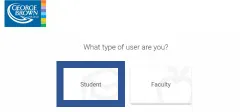
- Log in into Accommodate using your GBC account (your username: is your student ID@georgebrown.ca)
Accessing your Accommodation Letters
- Log in to Accommodate. From the navigation menu, select Accommodation and then Accessibility Letters.
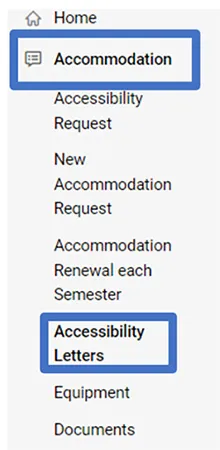
- This will bring up a list of different letter types which have been produced for you including Accommodation Letters. Find the most recently dated one in the list and select Accommodation Letter.
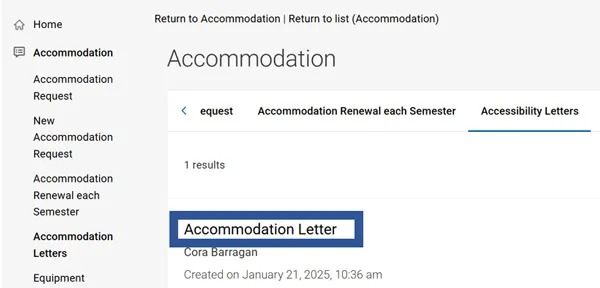
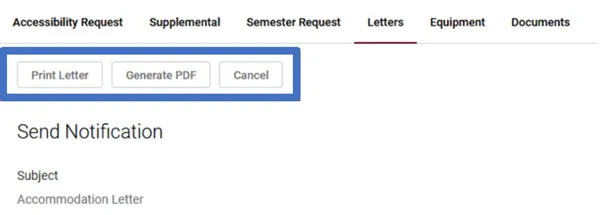
- From here, you can review the letter or print or generate a PDF copy of your Accommodation Letter.
Submitting Documentation
- Log in to Accommodate. Select Documents and then Approved Documents
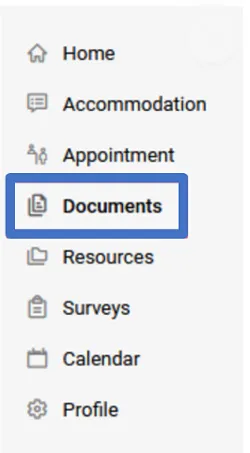
- Select Add New Accessibility Document button.

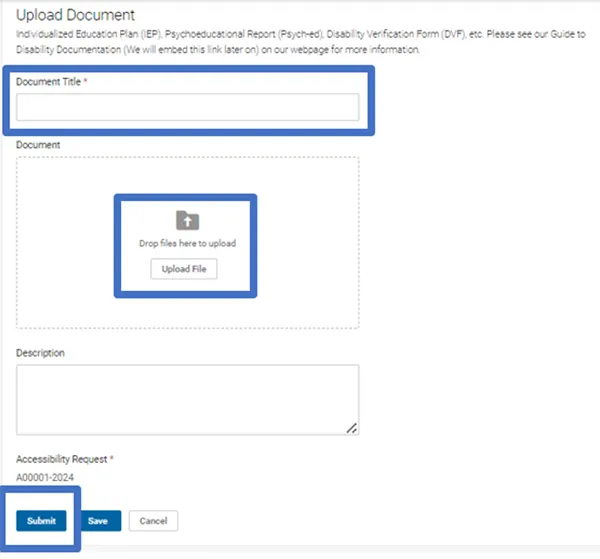
- Now you can upload your document. Your file must be:
- In PDF format.
- Named in the following style: Student Number, ALS DOCUMENTS (i.e. 123456789, ALS DOCUMENTS.pdf)
- To upload:
- In the title field, add a name for your file, this can be the same as the file name (i.e., 123456789, ALS DOCUMENTS.pdf)
- Drag the file into the window or select Upload File and then the file you want to submit
- Select Submit
Renewing your Accommodations
- If your accommodations are interim or temporary, you must renew your accommodations before they expire. When your accommodations expire, this means that they will not be sent to faculty, and you will need to follow up with your Accessibility Consultant.
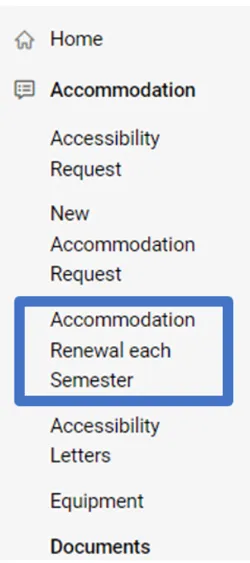
- To renew your accommodations, log in to Accommodate. Select Accommodation and then Accommodation Renewal
- Select Add new
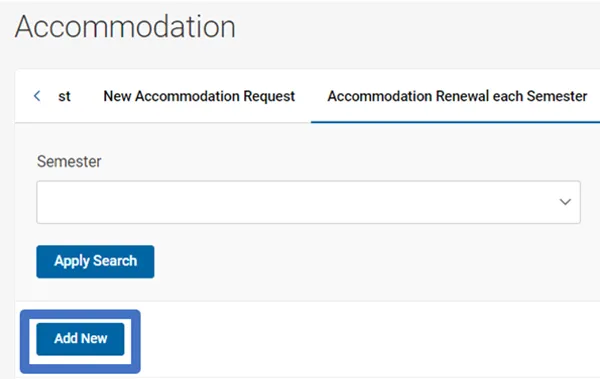
- From the Semester drop-down menu, and select the program/semester you are requesting accommodations for.
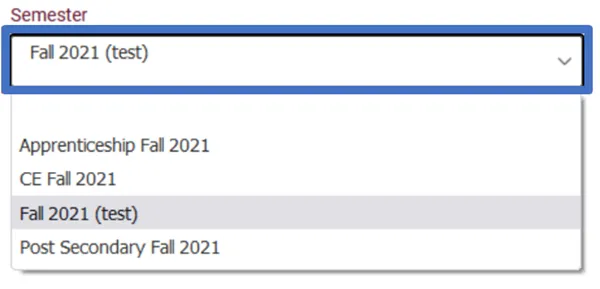
- Then you will see the classes you are registered in. You have two options:
- You can request all your accommodations for all your classes by selecting Submit for All Accommodations.
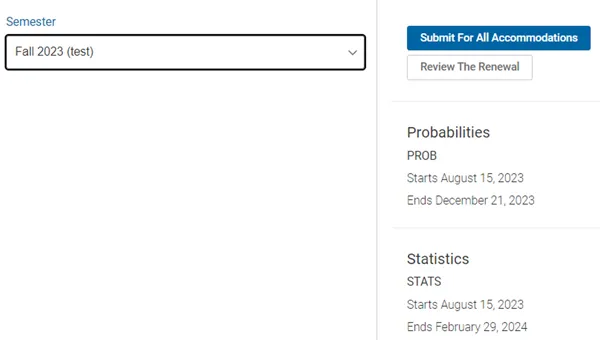
- You can select Review the Renewal and specify which of your accommodations you want to use for each class.
If you select Review the Renewal, you will be directed to a screen page which will list your accommodations. There will be a section with the semester you selected and a list of courses. Check the box next to the courses you would like to use your specific accommodations for. Do this for each accommodation listed. Once you are done, select Submit.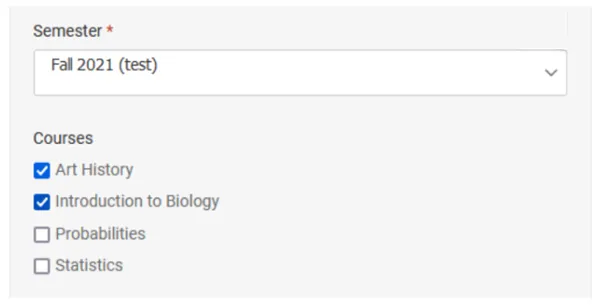
- You can request all your accommodations for all your classes by selecting Submit for All Accommodations.
After you complete either of these options, you will be brought back to the Accommodation Renewal page that will list your selections.
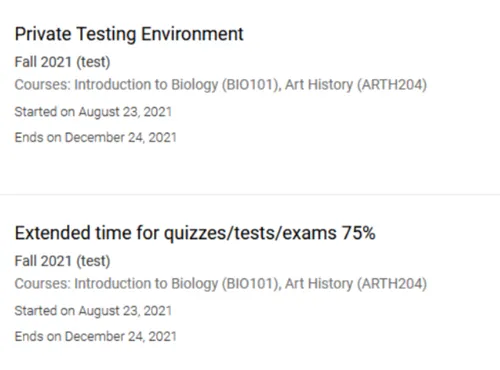
- At this point, your Accommodation Renewal for the semester has been submitted to Accessible Learning Services who will review, approve, and generate your Accommodation Letter. You may be contacted should further information be required.
Requesting New Accommodations
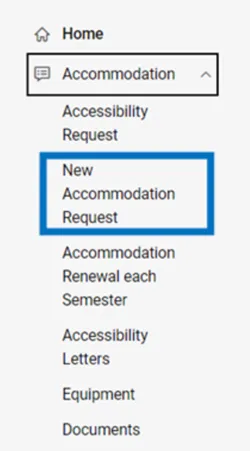
- Log in to Accommodate and select Accommodation, then select New Accommodation Request.
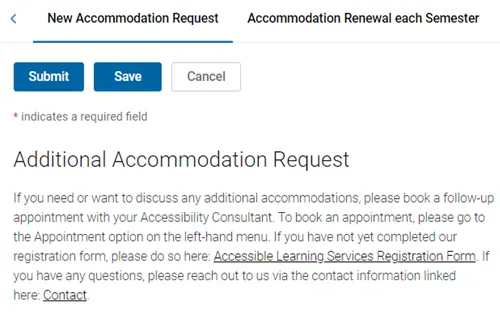
- If you need or want to request any additional accommodations, please book a follow-up appointment with your Accessibility Consultant.
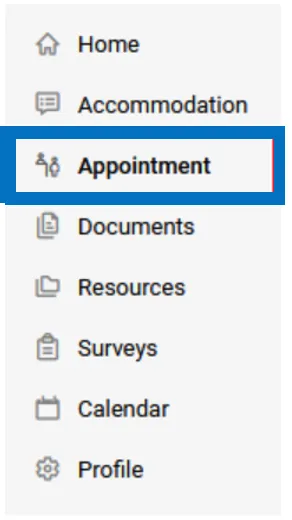
- To book an appointment, please go to the Appointment option on the left-hand menu.
- If you have not yet completed your Accessible Learning Services Registration Form, please do so. If you have any questions, please contact the Welcome Desk at your campus.
Making an Appointment Request
- Log in to Accommodate and select Appointment.
- Select Request New Appointment.
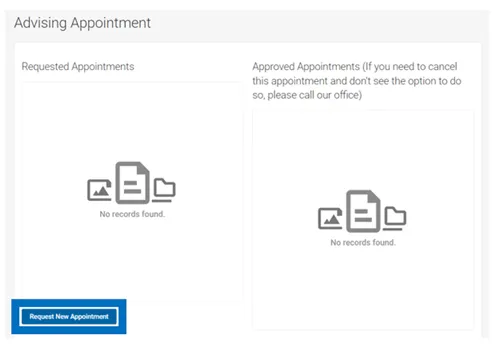
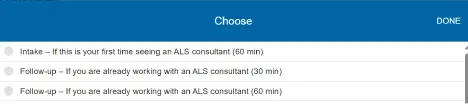
- You will be brought to the appointment request page. Select ‘Choose...' to pick an appointment type.
- This will trigger a pop-up is where you can request a specific appointment type booking. Once you have selected the appointment type, select DONE.
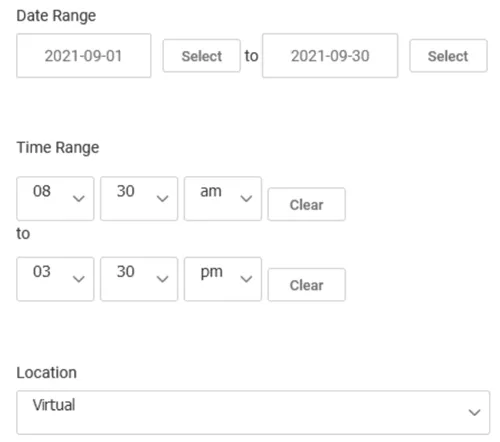
- Back on the appointment request page, you can specify the date range, time range, and location of the appointment.
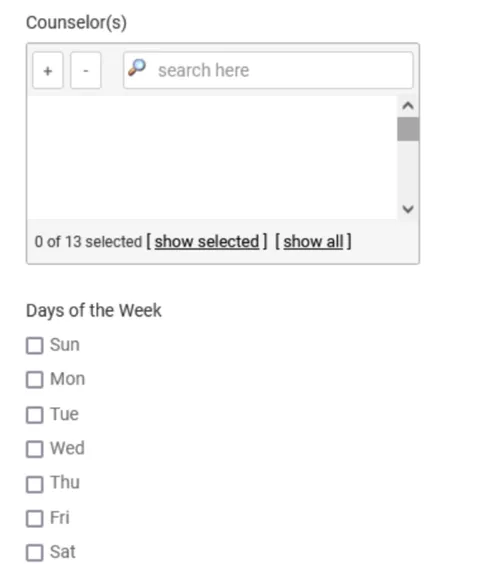
- You can further refine your search by selecting a specific counselor who you are looking to meet with, as well as specific days of the week that work best for you.
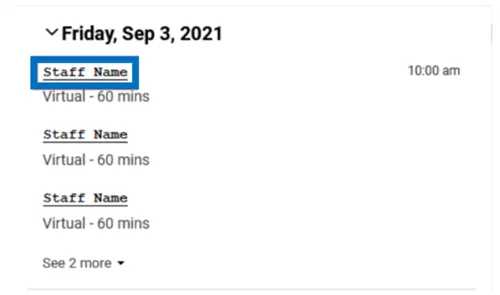
- The page will then show available appointment times and staff. Select the name of your preferred staff member you would like to request an appointment with.
- This will trigger a confirmation pop- up where you can provide any notes you want. Once you are done, select Submit Request.
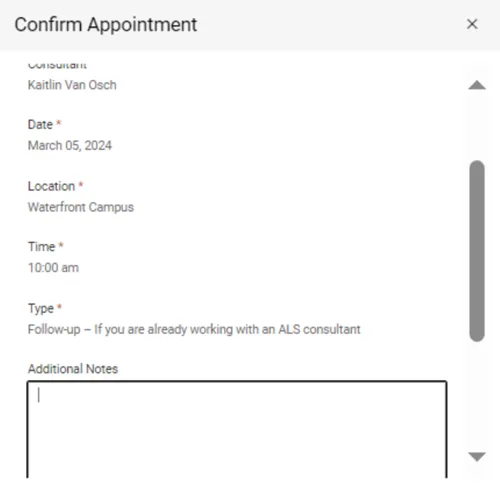
- You will be directed back to the appointments page where you will see any appointment requests you have made as well as approved appointments from Accessible Learning Services.