

Module
2

Brightspace

Brightspace logo

Getting Started

Brightspace is the virtual learning environment and Learning Management System (LMS) that George Brown uses. This means all your course content, assignments, resources, discussions and so much more will be there!

You can access Brightspace via learn.georgebrown.ca. Make sure to bookmark the webpage in your browser, or you can also easily access it via the Student Portal.

Please review this module before classes begin so you have a smooth start to the semester. If you have any questions, check out our student FAQs for Brightspace first, then find more info in the Accessibility & Troubleshooting section below.

Log in

To get into Brightspace, you must use your George Brown credentials:

Username: 

IDnumber@georgebrown.ca
Password: Your George Brown password

These are the same login credentials you use to access STU-VIEW and your George Brown email. If you have login issues, it might be easily solved by resetting your password.

We suggest you use the latest version of Chrome or Firefox. You can also test your device's compatibility on the login pages.

Brightspace has an app called Brightspace Pulse that you can download in the Apple App store or Google Play.

If you need login or account help, please get in touch with our Help Desk at 416-415-5000 x4357 or helpdesk@georgebrown.ca.

Profile settings

You can edit your user profile by selecting your username and then “Profile.”

You can update the following elements in your profile:

  • Profile picture (The minimum file is 100x100 pixels, and maximum 1MB.)
  • A tagline (Something that describes you and leaves a positive first impression!)
  • Your interests and hobbies (This helps your peers and instructor learn more about you.)
Compatible browsers

To ensure optimal performance, accessibility, and security, D2L advises all users to access Brightspace using the most recent version of a compatible browser such as Google Chrome, Firefox, Microsoft Edge, or Safari. To check if your Browser is compatible, visit https://community.desire2learn.com/d2l/systemCheck.

Tips for using your browser settings to optimize performance:

  • Regularly update your browser manually or set up automatic updates.
  • Regularly clear the browser’s cookies (saved data from websites) and cache (temporary saved files).
  • Manage any plugins and extensions.
  • Close unnecessary tabs. Consider bookmarking the webpages instead.
  • Enable hardware acceleration.
  • Keep your operating system updated.
  • Check for malware/adware.
Managing notifications

It is important to opt in to notifications and keep them on so you don’t miss any important communication or assignments for your courses.

To update your notification settings, select your username and then “Notifications.”

Email notifications will be sent to your George Brown email account.  

There are many options for customizing your instant notifications. Review this video on PulseApp notifications.

Dashboard Navigation

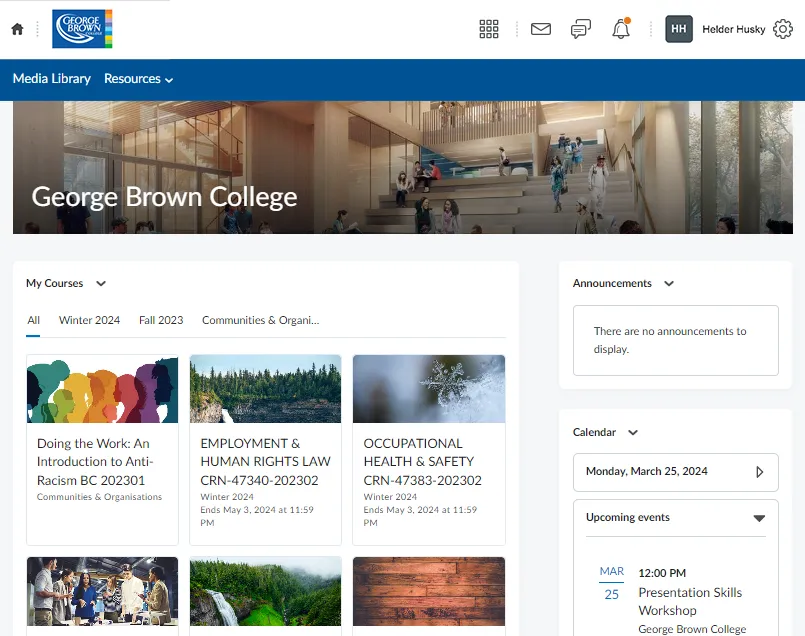
Once you login to your Brightspace page, you will find your dashboard. You will see your navigation options, courses and customizable features. Here are key items on your dashboard to help get you started:​​​​​

  1. My Courses: Here you will see a list of the courses you are registered in that are hosted in Brightspace. These will only appear as of the first official day of classes. Once you click on each course, you will see all the information and options related to that course.
  2. Resources: You'll find direct links for getting started, connected and supported at George Brown through services and supports in this section.
  3. Get Help: This tool will assist you wherever you are in Brightspace. You will see a button at the bottom right of your browser. You can use it if you’re stuck with something in the system or need to contact them for support.
  4. Your Name: This is where you can customize your profile (including changing your profile picture), settings, notifications and more account details.
  5. Message, Subscription, & Update Alerts: Here you can view all your notifications to stay on top of work and deadlines.
  6. Announcements & Calendar: Important announcements from George Brown and your faculty are housed here. You can see all your upcoming deadlines, event dates and more in the calendar. You can also subscribe to calendars and import your Outlook calendar to keep everything in one place!
Calendar

You can integrate your Brightspace calendar into your Outlook calendar to ensure you are staying on top of coursework, assignments and due dates. You will need to log into both your Brightspace and Outlook to complete this task. Follow the steps below:

  1. Visit learn.georgebrown.ca and sign in with your student ID and password.
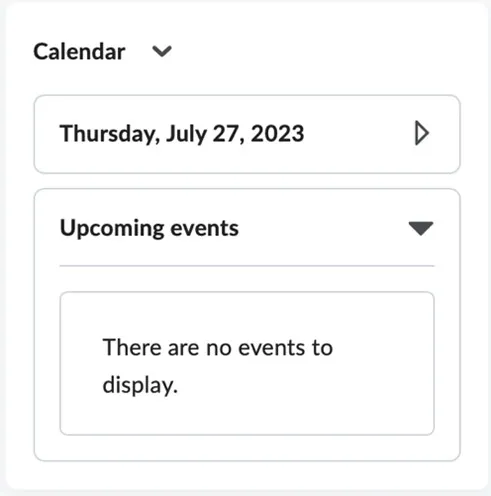
  2. On your dashboard, you will see a calendar widget on the lower right side of your screen. Click on the down arrow and then click “Subscribe.” 
     
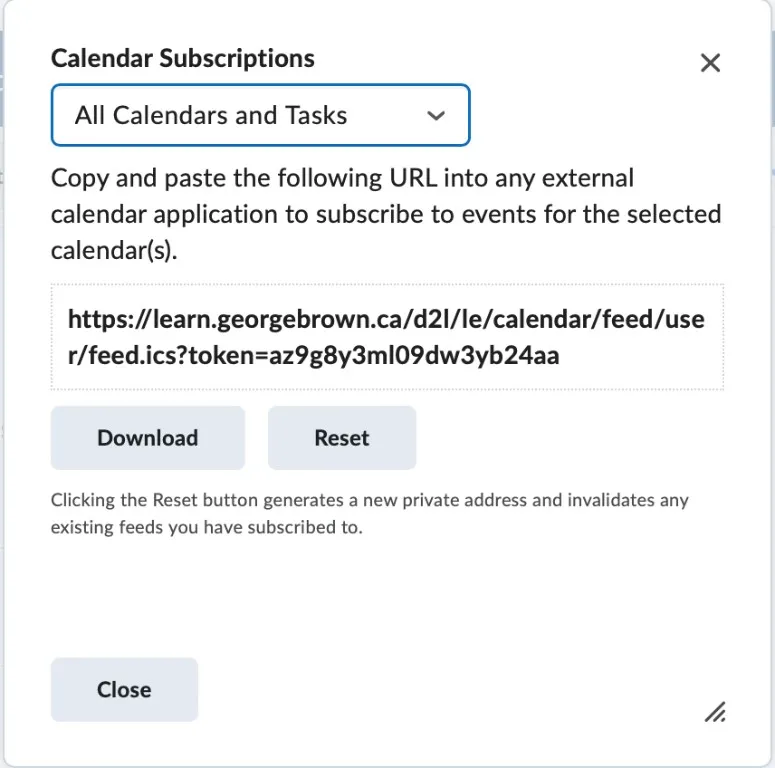
  3. Ensure you select “All Calendars and Tasks” from the drop down.
  4. A URL will appear with a subscription URL to your Brightspace calendar. Please note, if you select “download” an ics or iCal file will be created for everything currently in your calendar but will not reflect any changes.
     
     
  5. Highlight the URL and copy it to your clipboard so you can use it in the next steps.

Now you will need to login to Outlook in a web browser to continue.

  1. Visit https://outlook.office.com/ and log in with your StudentID@georgebrown.ca and password.
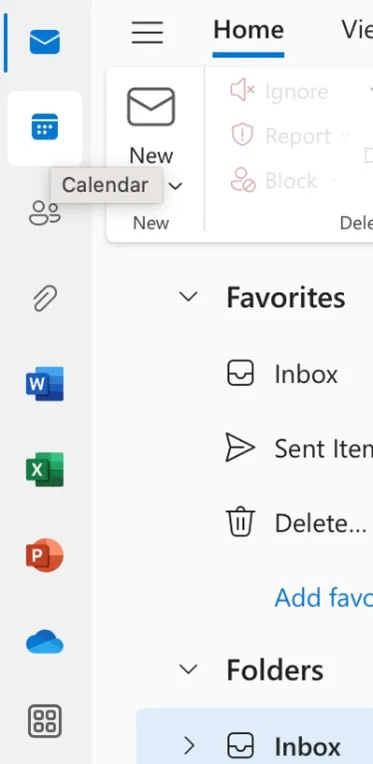
  2. Select the Calendar icon from the left-hand navigation.
     
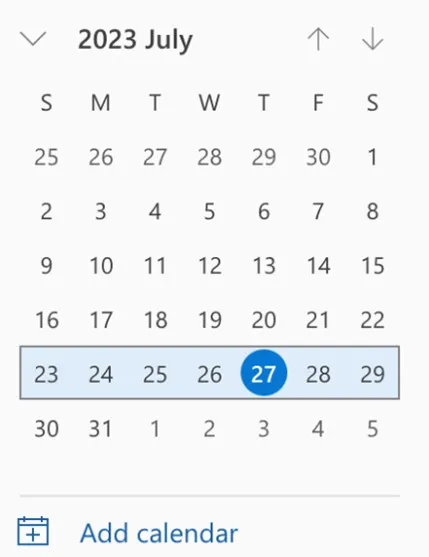
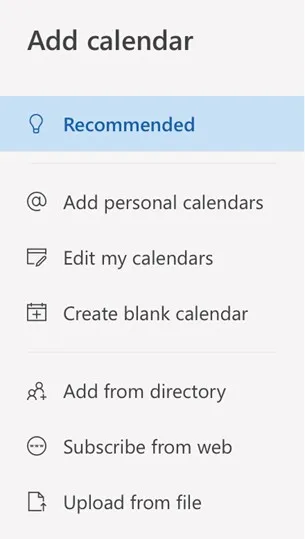
  3. In the navigation pane, select “Add Calendar.”
     
  4. Select “Subscribe from Web.”
     
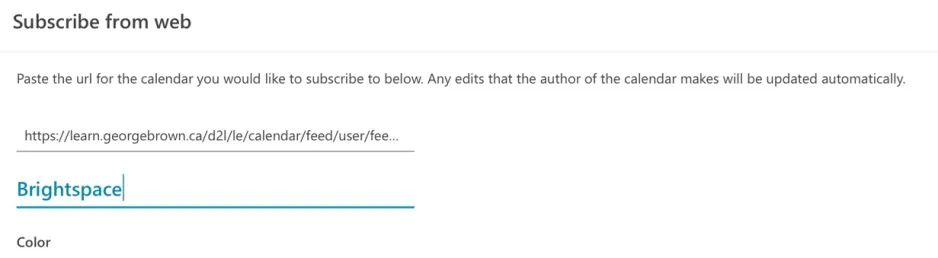
  5. Enter the URL to your Brightspace calendar and name the calendar Brightspace.
     
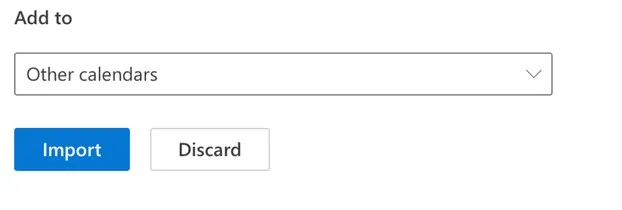
  6. Select Import.
     
  7. Restart your Outlook app on your device and your Brightspace calendar is now integrated into your Outlook!

Courses and Virtual Classes

Your registered courses should appear in Brightspace within a few days of the course start date. Please do not fret if you don’t see them before then! However, if you still don’t see it in Brightspace after that, your courses may not have synchronized with STU-VIEW. If this is the case, there are a few ways to get help: using the Brightspace chatbot, the Ask George chatbot in the Student Portal, email helpdesk@georgebrown.ca or call 416-415-5000 ext. 4357. Include your full name, student ID and the course CRN.

Once your courses have begun, there are two places where you can view your full course list. On the homepage, in the “My Courses” tab, click on “View All Courses.” You can also select the icon that looks like nine squares in the top menu for a drop-down list. From there, you can also pin a course, so it shows up first in lists.

Within your course page, there is much to see, such as:

  • Course content (files, text, assignments, images, multimedia, links, etc.)
  • Announcements and messages
  • Calendar
  • Discussion boards
  • Assessments
  • Grades
  • Other course tools

Accessing your virtual classes

Your virtual classes will be listed under each course's page. Navigate to the Microsoft Education tab. Your classes will take place on Microsoft Teams — you will be prompted to log in to Microsoft 365 using your studentID@georgebrown.ca and George Brown password. 

Then you can access upcoming class links, previous links (in case you're arriving a few minutes late), any recordings, and more.

Here are some helpful video tutorial playlists from Microsoft to enhance your use of Teams:

Assignments and Tests

As you progress through your course, you'll complete different types of assignments: problems to solve, chapter questions to answer, research papers, presentations, quizzes, tests and so on.

You can find your assignments and quizzes under “Assessments” in the top menu within the course's page.

Your instructor controls the date when assignments and quizzes can be accessed and when they are due. Please keep important dates in your calendar and contact your instructor if you are unable to locate it on the scheduled release date or if it has expired.


Grades

To view your grades in Brightspace, within each course’s page, select “Grades” from the top banner.

Every grade associated with projects and assignments for that class will be housed within the course page. Faculty will also include feedback in this section. Grades may not appear until your instructor adds them. Please contact your instructor if you have any other questions relating to your grades. 

Please note that your official final grade for the class will be posted to your STU-VIEW under the Academic Records tab at the end of the semester..

Accessibility and Troubleshooting

Accessibility

Brightspace is a fully accessible learning management system that includes many tools to make the most of your experience.

Some of the customizations include adjusting the text size and contrast, screen reader compatibility and enabling assistive technologies to provide a better learning experience.

To manage your customizations in Brightspace, select your name at the top right. Then select "Account Settings" to get started.

Troubleshooting

Brightspace has an easy-to-use tech support within the platform called Get Help, which you can find in the bottom right of your browser.

Get Help can give simple instructions to fix your issues, connect you with an agent or create a support ticket.

Further George Brown account help can be found via the Help Desk at 416-415-5000 x4357, helpdesk@georgebrown.ca or the Ask George chatbot in the Student Portal. You can also find more Brightspace support and FAQ here.

Module 3

Academic Success Strategies

Go there
Land Acknowledgement

Land Acknowledgement

George Brown Polytechnic is located on the traditional territory of the Mississaugas of the Credit First Nation and other Indigenous peoples who have lived here over time. We are grateful to share this land as treaty people who learn, work and live in the community with each other.