

George Brown Polytechnic is located on the traditional territory of the Mississaugas of the Credit First Nation and other Indigenous peoples who have lived here over time. We are grateful to share this land as treaty people who learn, work and live in the community with each other.
The Assessment Centre uses the program Accommodate for arranging accommodated testing. In Accommodate, faculty can:
- View Assessment Centre test booking requests from students.
- Provide testing information for the Assessment Centre.
- Upload tests/exams.
For more information and instructions about accessing accommodation letters for faculty, please visit Assessing Student Accommodation Plans.
You can access the Accommodate Portal from anywhere.
Testing Accommodations
In Accommodate, students can book accommodated testing at least seven days in advance. The system will send reminders to faculty to upload or drop off tests/exams.
For your cooperation, please note the following:
Testing pickup and drop off
- Students must access their tests from their home campus’ Assessment Centre. If you submit your text/exam by email, please use the corresponding email address:
- St. James:
- submittest@georgebrown.ca
- 200 King Street East, 2nd Floor, Room 275F
- Waterfront:
- wfsubmittest@georgebrown.ca
- 51 Dockside Drive, 5th Floor, Room 532 (Access through Library on 6th Floor)
- Casa Loma
- clsubmittest@georgebrown.ca
- 160 Kendal Avenue, Building C, Room C343 (Access through Library)
- St. James:
- Tests/exams can be dropped off at each Assessment Centre Monday through Friday, from 8:15 a.m. to 4:45 p.m.
If your class has 10 or more students needing test accommodations and/or you require colour printing for the test, please drop off physical copies for each accommodated test student in your class. The Assessment Centre does not have access to large volume or colour printing.Faculty are required to pick up the completed physical tests/exams from the Assessment Centre. The Assessment Centre is unable to email completed tests/exams back to faculty.
Booking and completion arrangements with students
- If the student books on a different date and/or time than their scheduled class test, the student will be required to get permission from their instructor.
- Faculty are required to complete the testing information and provide a copy of the test to the Assessment Centre at least 48 hours in advance.
- Faculty will also get an email system message when the Assessment Centre approves a student’s test booking request. You will be able to review the student’s test request details in that email. If any of this information is incorrect, please contact the Assessment Centre at your campus by email.
- If your test is on Brightspace, please provide the password when providing test information in Accommodate.
Submitting Testing Information through the Faculty Portal
- Log into the Accommodate Portal using your GBP log-in (employeeID@georgebrown.ca) and password. Select the Faculty user type.
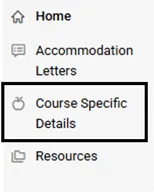
- Select Course Specific Details.
- In this section, you will see the Course Catalog for current courses you are teaching. Click on the Course Name to see course details and the associated tabs across the top. You can navigate the tabs using the front and back arrows.

- In the Assessment Centre Bookings tab, you will see all students in that course that have made upcoming test appointments. Select the name of the student if you would like to review the booking details that the student provided.
In the Upload Exam tab, you can upload all test information and tests/exams. You can also find a record of all tests that you have previously uploaded for this class.
To upload a new test/exam for this course, select the Complete Instructor Form and fill out the necessary details for this test. Select Submit. This will take you back to a list of all the uploaded tests/exams for that course.
If information for the exam changes in the time between your initial upload and the exam date, you can make the changes directly in the Instructor Form for that exam. Please also email the Assessment Centre at your campus to let them know there have been changes.
- To upload exams for other courses, you can click on Course in the horizontal navigation bar near the top. Alternatively, you can also click on Home on the left-hand menu.
