

George Brown Polytechnic is located on the traditional territory of the Mississaugas of the Credit First Nation and other Indigenous peoples who have lived here over time. We are grateful to share this land as treaty people who learn, work and live in the community with each other.
The Assessment Centre uses Accommodate for accommodated testing. Faculty will be able to do the following with Accommodate:
- View student test booking requests
- Provide test details to the Assessment Centre
- Upload tests/exams
- View accommodated students and their accommodations at a glance
For more information and instructions on accessing accommodation letters for faculty in Accommodate, please visit the Assessing Student Accommodation Plans page on the ALS website.
You can access the Accommodate Portal anytime.

Faculty Guidelines for Accommodated Testing
Using the Accommodate Faculty Portal
Logging in and Reviewing Test Room Bookings
- Log in to the Accommodate Portal using your George Brown log-in (employeeID@georgebrown.ca) and password. Select the Faculty user type.
- There are two ways to review your test room bookings for your course(s).
- The Test Room Bookings to Review section on the home page.
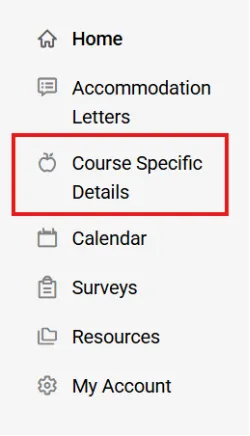
- The Course Specific Details from the left-hand navigation bar.
Test Room Bookings to Review – Home Page
This section on the home page will show you all approved booking requests for each course. Faculty can review requests and add test information directly from the home page.
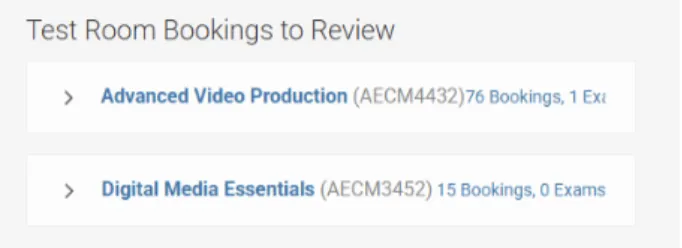
- Expand the course information to view all approved bookings for this course. You will be able to see the dates and times of each booking under each student for easy reference.
- Select the Review button to open the student’s booking record.
- In the Exam field, select an existing test or upload a new exam to complete the Instructor Form. Fill out all mandatory fields and click Save. If you have given your student permission to write this test outside of class time, you can include that in this form in the “Other Materials/Instructions” section.
- Remove completed requests from your home page by clicking the X next to the booking. The request will disappear, but you can find it in the Course Specific Details page (see below).
- Use the Previous or Next buttons to move between requests.
Viewing your Test Room Bookings and Accommodated Students – Course Specific Details
1. Select Course Specific Details from the left-hand menu.
2. The Course Catalogue shows current and past courses on separate tabs. Select the course[PK1] title in a current course.
3. In the Course Details window, you will see sections across the top.

Accommodated Students: view all the students registered with ALS in that course and their accommodations.
Assessment Centre Bookings: review upcoming bookings under the Approved tab. You can select the name of the student and can review the booking details this way as well.
Upload Exam: submit new tests or review previous submissions. To upload a new test/exam, select Complete Instructor Form, fill out the mandatory fields and select Submit.
Note: If something has changed and you need to edit the Course Instructor Form or the student’s test booking, click on the test and make your edits. Make sure you click Save.
Dropping Off and Picking Up Tests
Online Submission
Upload tests directly through the Accommodate (preferred).
Email or In-Person Submission
Use the campus-specific contact information:
- St. James:
- submittest@georgebrown.ca
- 200 King St. East, 2nd Floor, Room 275F
- Waterfront:
- wfsubmittest@georgebrown.ca
- 51 Dockside Dr., 5th Floor, Room 532 (Access through the Library on 6th Floor)
- Casa Loma:
- clsubmittest@georgebrown.ca
- 160 Kendal Ave., Building C, Room C343 (Access through the Library)
Hours: Monday to Friday, 8:15 a.m. to 4:45 p.m.
Test Pickup
- Faculty are required to pick up completed physical tests/exams.
- The Assessment Centre is unable to email completed tests/exams back to faculty.
- Hours: Monday to Friday, 8:15 a.m. to 4:45 p.m.
Printing Requirements
Provide physical copies if:
- Your class has 10 or more accommodated students, or
- Your test requires colour printing
The Assessment Centre does not have access to large volume or colour printing.
Academic Integrity Measures at the Assessment Centre
The Assessment Centre has standard practices and policies in place to support academic integrity and a consistent testing environment. We encourage faculty to reach out to us at their campus if they have any questions or concerns.
See our Academic Integrity Procedures page for faculty and staff for details on all our testing procedures and policies.