
George Brown Polytechnic is located on the traditional territory of the Mississaugas of the Credit First Nation and other Indigenous peoples who have lived here over time. We are grateful to share this land as treaty people who learn, work and live in the community with each other.
Keep the Bad Guys Out
George Brown Polytechnic uses the multi-factor authentication (MFA) security feature. MFA is a cyber security best practice and is widely used by organizations around the world to protect systems and users. Simply put, you’ll be asked to authenticate on your mobile phone through the Microsoft Authenticator app in addition to logging in to college applications online as an extra layer of security.
Follow the steps below to set up MFA. If you have questions, refer to our FAQs below or email mfa@georgebrown.ca.
Accessibility
If you are experiencing accessibility concerns or problems related to MFA, you can report the problem in the following ways:
- Complete an Accessibility Feedback form.
- Email digitalaccessibility@georgebrown.ca.
How to Set Up MFA
- 1 (Phone) Set up MFA your phone
- 2 (Computer) Set up MFA on your computer
- 3 (Phone) Scan the QR code with your phone
- 4 (Computer) Select Next
- 5 (Phone) Approve Notification
(Phone) Set up MFA your phone
- Download and install the latest version of Microsoft Authenticator app from the Google Play Store for Android (georgebrown.ca/android) or the App Store for iOS (georgebrown.ca/apple).
- Open the Microsoft Authenticator app.
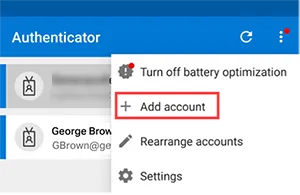
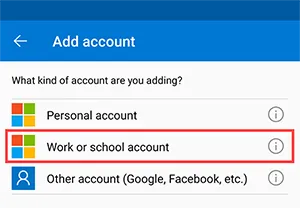
Within the app, choose + Add account and then choose 'Work or school account'.
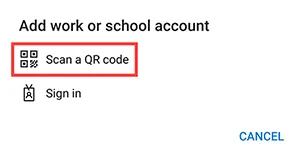
- Select Scan a QR code:
(Computer) Set up MFA on your computer
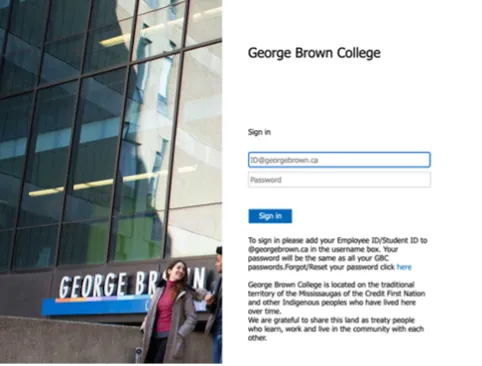
- Go to georgebrown.ca/begin.
- If you are not already signed in, select your account and log in as usual using your regular, numbered GBCID@georgebrown.ca and password.
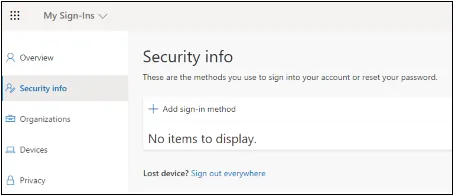
- Select + Add sign-in method:
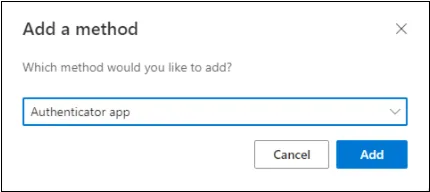
- Select Authenticator app and then click Add:
- Click Add to progress to the next screen, and then Next to reveal your QR code.
(Phone) Scan the QR code with your phone
- Scan the QR code visible on your computer from Step 2. You will need to allow your phone to take photos while using the app to scan the QR code.
- If you are having trouble scanning the QR code, click on the Can’t scan image option under the QR code to manually enter the code and URL in the app.
(Computer) Select Next
- Select Next. A notification is sent to the Authenticator app on your phone to test the account.
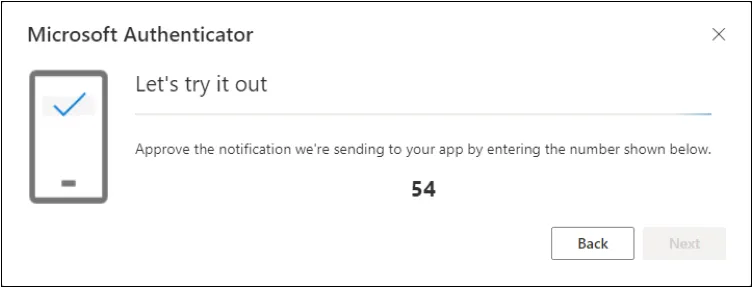
(Phone) Approve Notification
- Approve the notification in the Authenticator app by entering the number shown on your computer, and then select Next.
Frequently Asked Questions
General Information
Why has the college adopted multi-factor authentication (MFA)?
Many organizations worldwide use multi-factor authentication (MFA) to protect their systems and user data. MFA makes it more difficult for a threat actor to gain access to college premises and information systems, such as remote access technology, email, and billing systems, even if passwords or PINs are compromised through phishing attacks or other means. The college has adopted it as part of its ongoing efforts to ensure the safety and security of our community.
I am a student who is also an employee of the college. Am I eligible for an exception?
All students are required to set up MFA, regardless of their employment status with the college. To protect GBP systems and our users, we require all employees and students to use MFA when accessing designated college applications. If your devices are unable to download the app, please seek an exception by completing the exception form. If your exception request is approved, you will be granted a hardware token to use for MFA. You cannot opt out of using MFA.
If I'm using a personal computer, can I still use MFA?
MFA is setup on your phone and can be used to authenticate you whether using a personal or GBP-issued computer, tablet or phone.
I have concerns about using MFA. How should I raise them?
MFA is an important step toward ensuring the cyber security of GBP systems and users. The Microsoft Authenticator app is solely used to authenticate your GBP account, and GBP has no access to your personal device(s) after you install the app. Please email mfa@georgebrown.ca with cyber-security-related concerns or questions.
What does using MFA mean for using apps such as Outlook and MS Teams?
After you have set up MFA, once a month or whenever you log in from a new location, you will be prompted to use MFA before you can access apps such as Outlook and Teams.
Can I opt out of using MFA?
NO. To protect GBP systems and our users, we require all employees and students to use MFA when accessing designated college applications. MFA is used to secure your data and accounts from malicious actors.
How can I learn more about cyber security?
To learn more about cyber security best practices, please visit georgebrown.ca/its/cyber-security.
If you have a cyber-security-related question, please email us at cybersecurity@georgebrown.ca
I set up MFA last semester. Do I need to set it up again for each semester?
MFA will continue to work as long as you are an active student.
I’m a GBP alum and still use my college accounts. Do I need to use MFA?
Alumni accessing college services must use MFA, otherwise they cannot access their accounts.
I’m about to graduate, do I still need to set up MFA?
All active students are required to setup MFA. If you are graduating and intend to use your continued access to college services, it is required that you use MFA.
Technical Support & Privacy Information
How can I access technical support for MFA?
Technical support is available by calling the Help Desk at 416-415-5000, ext. 4357 and selecting option 2 for the Helpdesk.
On which devices can I install the Microsoft Authenticator app?
Minimum requirements for downloading the Microsoft Authenticator Application:
- Apple App Store:
- iPhone – iOS 14 or above
- iPad – iPadOS 14 or above
- iPod Touch – iOS 14 or above
- Google Play Store:
- Android Mobile Phone – Android 8 or above
- Android Tablet – Android 8 or above
What if my mobile phone or tablet does not support the Authenticator app?
The Microsoft Authenticator app is free and available for download from the Apple App Store and Google Play Store. If your phone or tablet can access one of these stores, you should have no issues downloading the Microsoft Authenticator app. If your devices are unable to download the app, please seek an exception by completing the exception form. If your exception request is approved, you will be granted a hardware token to use for MFA. You cannot opt out of using MFA.
I’m trying to sign in and I need to select the number in my app that’s displayed on the sign-in screen, but the notification prompt from Authenticator is blocking the screen. What do I do?
Select the 'I can’t see number' option on the notification so you can see the sign-in screen and the number you need to select. The prompt reappears after 3 seconds, and you can select the correct number then.
How can I scan the QR code?
Click "Verified IDs" at the bottom right of the MS Authenticator app, then select "Scan a QR code".
How is my location information used and stored?
The Authenticator app collects your GPS information to determine what country you are located in. The country name and location coordinates are sent back to the system to determine if you are allowed to access the protected resource. The country name is stored and reported back to the college, but your actual coordinates are never saved or stored on Microsoft servers.
Is registering a device agreeing to give George Brown Polytechnic access to my device?
Registering a device gives your device access to the college's services and doesn't allow the college to access your device.
Do I have to provide TouchID or FaceID when opening the Authenticator app?
No. You can turn off TouchID or FaceID for the Authenticator app by taking the steps listed here.
Why can't I use text messages or voice calls to authenticate?
SMS and voice calls are not encrypted. This makes them easier to intercept and both are vulnerable to phishing attacks. Attackers can also trick the phone company's employees into transferring a phone number to the attacker’s SIM card, thus the SMS codes being sent to them instead of you. Authentication apps such as Microsoft Authenticator can work offline despite any outages by your phone carrier. The recent Rogers outage is one example where text messages or voice calls would not have been possible. Also, attackers usually target the weakest link in security and with MFA, SMS is the weakest link.
How can I learn more about the Authenticator app?
Please visit Microsoft's Authenticator app webpage for more information.
How often will I be prompted to authenticate?
Once you have successfully registered for MFA, you will be prompted to authenticate when logging in to your GBP accounts once a month, or whenever you are in a new, unrecognized location.
Faculty/Staff:
- Any Location outside of George Brown Polytechnic Campus:
- Compliant GBP device: No challenge
- Non-compliant GBP device: 30 days sign-in frequency
- George Brown Polytechnic Campus:
- Compliant GBP device: No challenge
- Non-compliant GBP device: 30 days sign-in frequency
Students:
- Any Location:
- 30 days sign-in frequency.
What if an employee does not want to use MFA, but they don't qualify for an exemption?
As with all college policies, procedures and guidelines, employees will be expected to abide by the college’s MFA policy as part of their employment with the college. Employees who do not comply and do not have an approved exception will be subject to sanctions/discipline, which could include cancellation of contracts, being placed on an unpaid leave and/or disciplinary action up to and including termination.
Does MFA authentication use the data on my phone? What about roaming if I am out of town?
MFA authentication uses a very small amount of data if data (cellular or Wi-Fi) is available. If you would prefer not to use data at all, especially when roaming or if your phone is in offline/airplane mode, you can still authenticate by clicking on “sign in another way” and using the 6-digit number provided in the Microsoft authenticator app.
What should I do if I get a new phone?
Please set up MFA on your new device before resetting your old device. This can be done by following the same steps for setting up MFA by going to www.georgebrown.ca/begin and going through the setup. Once you have setup Microsoft Authenticator on the new device, you can remove the old phone from your account on the same ‘security info’ page. Now the authentication prompt will appear on your new phone.
My phone was lost, stolen or broken. What should I do?
If you have lost or a broken device, please reach out to helpdesk by calling 416-415-5000 ext. 4357.
I am getting error messages for the QR code during set up. What should I do?
Please make sure that you’re installing Microsoft Authenticator on one of these supported devices:
- Apple App Store:
- iPhone – iOS 14 or above
- iPad – iPadOS 14 or above
- iPod Touch – iOS 14 or above
- Google Play Store:
- Android Mobile Phone – Android 8 or above
- Android Tablet – Android 8 or above
If the QR code is invalid on one of the supported devices, please close the browser window and restart that step of the process as the QR code registration has to be completed within a few minutes of code generation.
I know I am prompted when I sign into Microsoft accounts, does this also apply to signing in to D2L-Brighstpace and STU-VIEW?
Currently, MFA only applies to all Microsoft 365 services such as Outlook and Microsoft Teams, however all GBP services will require MFA.
How do I back up/restore the Microsoft Authenticator app or transfer it to a new device?
For more information on how to back up and recover account credentials in the Authenticator app, please visit this Microsoft webpage.
Will I be required to use MFA when connecting to GBP resources over a virtual private network (VPN)?
Yes. MFA is essential to mitigate the risks associated with unauthorized remote access and potential breaches. MFA adds an additional layer of security, ensuring that only authorized users can access the GBP network and resources remotely.